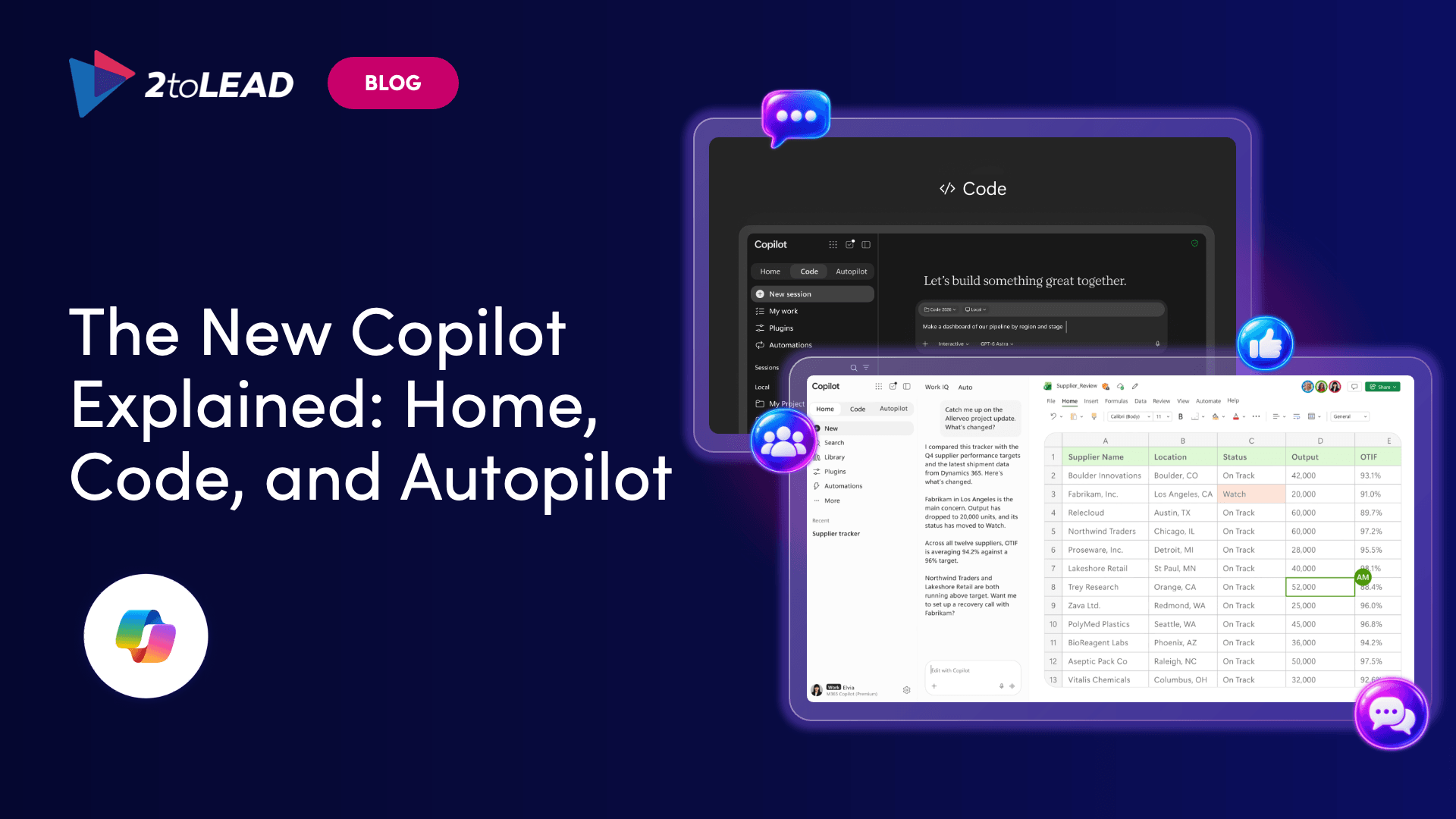
Copilot interactive slides reach PowerPoint by the end of October 2026 with no admin controls. What changes, who gets it and 7 steps for IT leaders.
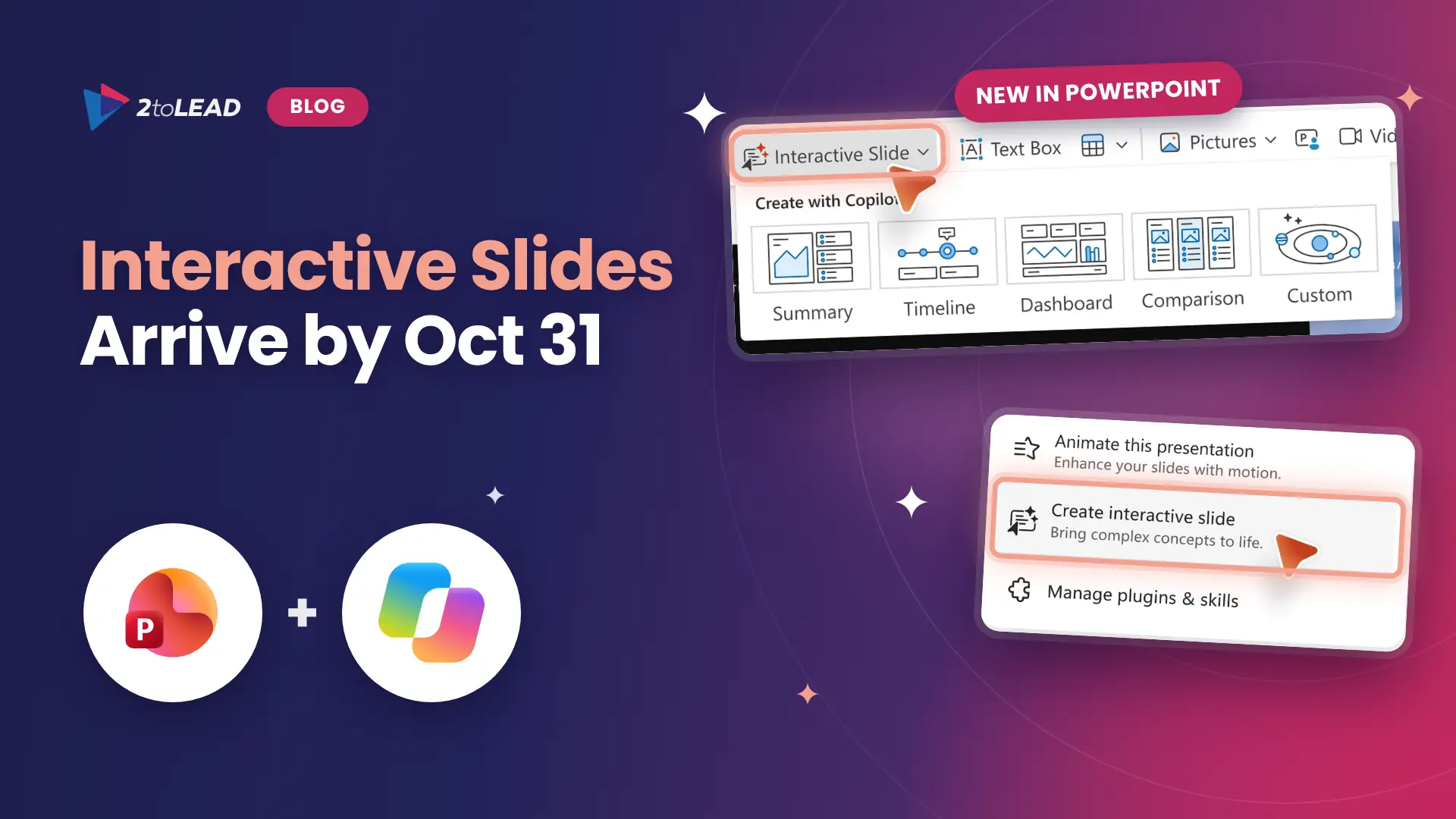
TL;DR: Copilot in PowerPoint now has a Create interactive slide skill. It builds a full slide that you and your audience can click through: dashboards, timelines, process flows and comparisons, grounded in your own Excel and Word content through Work IQ. It is rolling out to PowerPoint for Windows, Mac and the web, and Microsoft expects rollout to finish by the end of October 2026. There is no separate license and no admin setting to turn it off. Anyone who can use Copilot in PowerPoint gets it, and anyone you share the deck with can explore it without a Copilot license. Use the next two weeks to update presentation guidance, brief your help desk and choose a few pilot teams.
Most features that reach PowerPoint quietly wait for people to find them. This one comes with a deadline. Microsoft's rollout to Current Channel, Monthly Enterprise Channel and PowerPoint for the web is expected to be complete by the end of October 2026, which is about two weeks away. After that, the Interactive Slide button will sit on the Home and Insert ribbons for every user who already has Copilot in PowerPoint.
For CIOs, CHROs and IT leaders, the question is not whether people will try it. They will. The question is whether the first interactive dashboards your leaders present will be accurate, on brand and safe to share, and whether you can show that the feature saved anyone time. That takes a little preparation, and the work is very manageable if you start this week.
Interactive slides are slides that Copilot builds with interactivity you can explore while you present. You describe the story you want to tell, and Copilot produces a slide where you can expand a step, filter a chart or move along a timeline. Microsoft introduced the feature in its announcement, Transform your storytelling with interactive slides in PowerPoint, on the Microsoft Copilot Blog.
You start from the Interactive Slide button on the Home or Insert ribbon, or from Create interactive slide in the Copilot skills picker. Copilot can work from a prompt alone, or from content in the deck and in your other files, such as an Excel workbook or a Word document. Microsoft highlights four main uses:
One detail changes how people work: you cannot edit an interactive slide directly on the canvas. You refine it by prompting Copilot, for example "make this a bar chart" or "add a filter by region." If your teams are already standardizing prompts as reusable building blocks, the thinking in SharePoint Skills Explained: Turn Repeatable Work into Reusable AI Workflows applies here too.
Here is what arrives, who gets it and what it means for your organization.
Swipe horizontally to view each area, what changes and what it means.
| Area | What changes | What it means for you |
|---|---|---|
| Creation | A new Create interactive slide skill and an Interactive Slide button on the Home and Insert ribbons. | The feature is visible to every eligible user, so expect curiosity and help desk questions on day one. |
| Rollout | Rolling out now to PowerPoint for Windows and Mac (Current Channel and Monthly Enterprise Channel) and PowerPoint for the web. Expected to complete by the end of October 2026. | Your guidance and training need to be ready within about two weeks. Users on Frontier and preview channels already have it. |
| Licensing | Available to users who already have Copilot in PowerPoint, including Microsoft 365 Copilot Basic and Premium. No separate license. | No new purchase, but more reason to know exactly who holds which Copilot entitlement. |
| Admin controls | None. Microsoft provides no admin setting for interactive slides. | Governance comes from guidance, sensitivity labels, Purview policies and training, not a toggle. |
| Viewing and sharing | Anyone you share the deck with can explore the interactivity without a Copilot license. In PowerPoint Live in Teams, each attendee interacts on their own. | Every person who receives the deck can reach every number in the slide, including figures the presenter never clicks on. |
| Data | Dashboards use a snapshot of your data at the time the slide is created or updated through Copilot. They do not refresh on their own. | Decks need a data date and an owner, or last month's numbers will be presented as current. |
Interactivity depends on where the deck is opened. This matters for board packs, mobile viewers and records.
Swipe horizontally to compare each experience.
| Experience | Interactive slides | Watch for |
|---|---|---|
| PowerPoint for Windows and the web | Create, update and interact, in both slide show and presenter view. | Keep PowerPoint on the latest Current Channel or Monthly Enterprise Channel build. |
| PowerPoint for Mac | Create, update and interact in slide show. | No interaction in presenter view yet. Other content on the slide appears behind the interactive content. |
| PowerPoint for iPad and the Copilot app | Interact with the slide. The Copilot app can also create and update. | Use the latest App Store release on iPad. |
| PowerPoint Live in Teams | Each attendee can explore the slide independently. | Attendees do not see what the presenter clicks. Narrate the key view out loud. |
| iPhone, Android, print and PDF | No interactivity. The slide appears as a static image. | Executives reading on a phone, and PDF records, see only the starting view. |
Microsoft notes that interactive slides use sandboxed web views that do not connect to other content or services, and that the skill runs on Microsoft 365 Copilot, so your Microsoft Purview protections for generative AI apply. Microsoft also states plainly that AI-generated layouts and content can contain inaccuracies and should be reviewed before you present or share.
Some sectors have extra decisions to make:
Interactive slides arrive at no extra license cost, which makes them an easy win to measure. The value is in time saved building decks and in better decisions from clearer reporting. Pick a small set of measures before rollout completes, so you have a baseline:
For example, if 40 managers who each build a monthly reporting deck save one hour per deck, that is 40 hours a month, or about 480 hours a year, from one recurring meeting. Track that next to Copilot usage in PowerPoint and you have a value story that finance will recognize. Beyond 'Active Users': The Copilot Adoption Metrics That Actually Prove Value shows how to move from activity to business impact.
Rollout to PowerPoint for Windows and Mac on Current Channel and Monthly Enterprise Channel, and to PowerPoint for the web, started in mid-October 2026 and is expected to complete by the end of October 2026. Users on Frontier, the Microsoft 365 Insider Beta Channel or Current Channel (Preview) can already use the skill.
No. Interactive slides are available to users who already have Copilot in PowerPoint, including Microsoft 365 Copilot Basic and Premium. People you share the deck with can explore the interactivity without a Copilot license.
No. Microsoft provides no admin controls for interactive slides. Manage the risk through Copilot license assignment, sensitivity labels, Microsoft Purview policies and clear presentation guidance.
No. An interactive dashboard reflects a snapshot of the data at the time Copilot created or last updated the slide. Ask Copilot to update the slide before reusing the deck, and show the data date on the slide.
2toLead works with small and mid-market organizations across healthcare, nonprofit, education, financial services, professional services, government and manufacturing on Copilot readiness, governance and adoption. Before interactive slides reach every user, we can help you:
For more on Copilot adoption, governance and value, browse the 2toLead Insights hub. When you are ready, book a Copilot in PowerPoint readiness session with our team before rollout completes.
No hype. Just practical, governed AI that actually gets adopted.
Copilot licences bought, usage flat, ROI unproven? Three ways we help:
A global nonprofit turned Copilot licences into 1,115.6 hours saved and $83.7K in productivity value.
Read the case study →


Join Our Newsletter