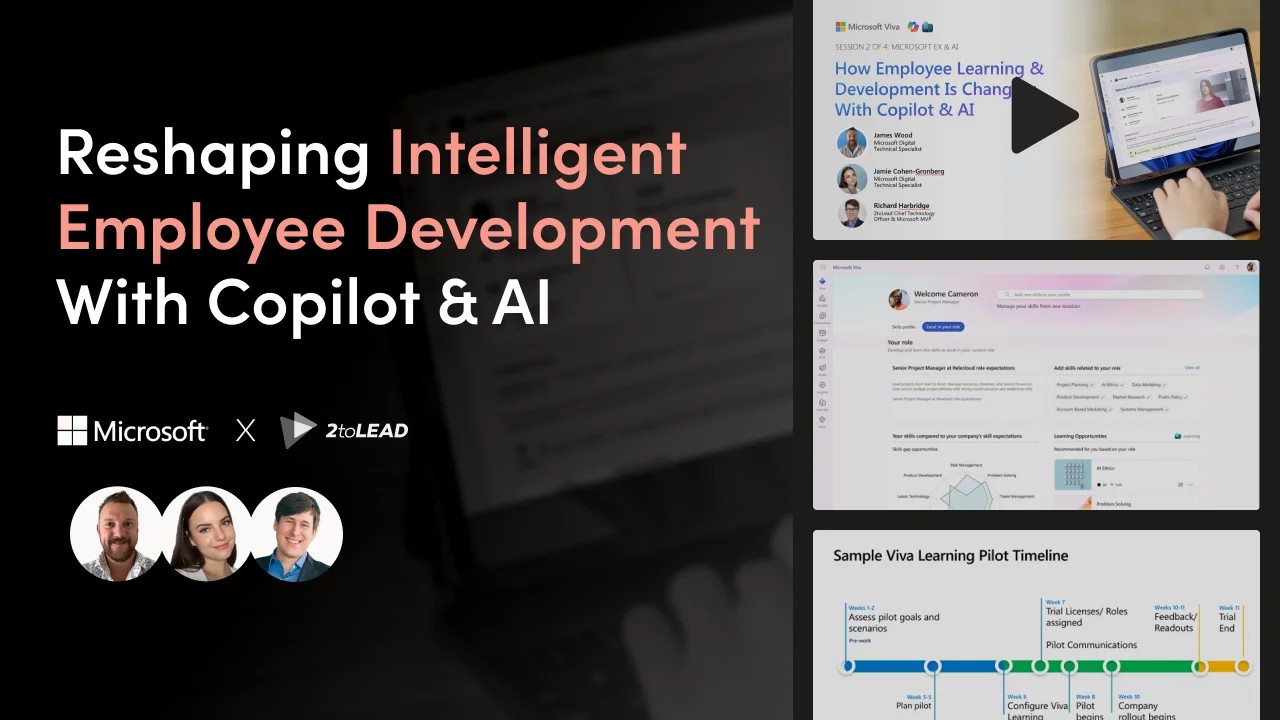
Most employees won't become developers, yet they can still ship real work with Copilot. Get the session slides and learn how to use "vibe coding" to turn plain-language requests into finished work across Microsoft 365 and Power Platform. You don't need to write code.

Why Most Copilot Prompts Fail (and How to Fix Them)
If Copilot's output usually comes back generic, the tool isn't the problem. The way you ask is. People often rewrite AI drafts two or three times because the first prompt was vague. This deck shows you how to write a clear brief up front so you skip most of that rework.
From the Minds Behind the Session
- Kanwal Khipple, CEO and Founder of 2toLead, 18x Microsoft MVP, speaker and author
- Paras Dodhia, Founder of MindLab Systems, Power Platform solution architect
What is vibe coding in Microsoft Copilot?
Vibe coding means describing the result you want in plain language, then guiding Copilot with your inputs and limits until the output is right. You decide what you want, and Copilot works out how to produce it.
What's Inside the Slide Deck
A three-part prompt pattern you can reuse every time
Every good prompt has three parts: Intent (the goal, the audience, the format), Inputs (the files, notes, or data Copilot should use) and Constraints (length, which sources to use, what to include or leave out).
Ways to steer Copilot toward more accurate drafts
Learn how to use examples, quick revisions and fact-checking to get more reliable results.
Step-by-step walkthroughs of real work
Follow how the session built three real pieces of work: a Word brief ready to send to stakeholders, an Excel sheet with instant analysis, and an approval workflow. All three use only prompts and simple clicks. The deck also walks through a Teams meeting recap that turns a transcript into decisions with an owner for each action.
Scheduled prompts for repeat tasks
Stop retyping the same prompts. See how to schedule weekly digests, project summaries and status updates so they're ready when you need them.
When to use Copilot and when to use standard features
Learn which tasks Copilot handles well and when a built-in Microsoft 365 feature is the faster choice.
Who This Deck Is For
- Microsoft 365 Copilot users who want better results than "summarize this"
- Business users and team leads driving everyday AI adoption
- Copilot champions and adoption leads building training programs
- Anyone new to Copilot. The session was rated for newcomers.
Key Takeaways
By the end of the deck, you'll be able to:
- Use the Intent → Inputs → Constraints pattern to write drafts in Word, Outlook and Excel that you can actually use
- Apply three ways to steer Copilot that the session aims to use to cut rework by 25% or more
- Build a basic approval workflow with plain language and clicks, and roll it out safely to your team
- Get to a finished first draft in minutes, not days
Turn Copilot Skills Into Adoption Across Your Organization
One good prompt helps one person. A repeatable approach helps your whole team. 2toLead helps organizations move from scattered Copilot experiments to everyday habits people keep using.
→ Talk to a Copilot Adoption Expert